Edit zones
Edit zone settings or room reset commands with the admin console, then commit each draft and save the zone file that stores it.
Use webOLC in the admin console to adjust a zone's reset timer and boundaries or to edit the reset commands for a specific room. Zone-wide settings and per-room reset commands have separate editor views so two builders don't step on each other.
Before you start
Section titled “Before you start”- Sign in at
/admin/with a character assigned to build in the zone. - Open the zone from Zones & rooms.

Change zone settings
Section titled “Change zone settings”- Open the zone and choose Edit zone.
- Change its name, lifespan (minutes between resets), reset mode, or top room vnum. The full-zone reset timeline on this page is read-only.
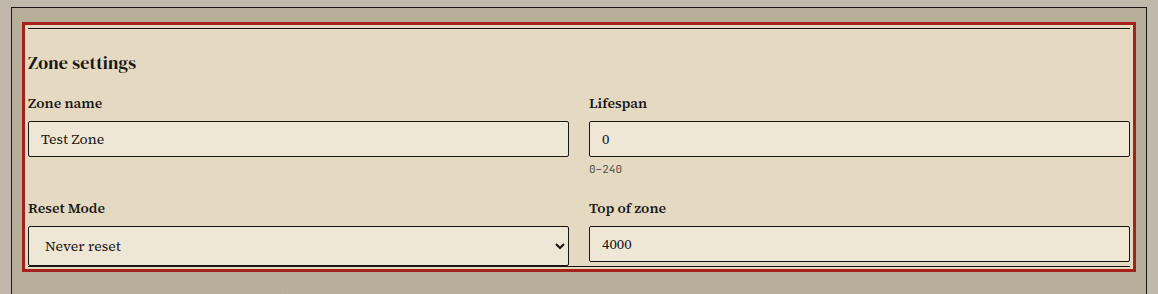
- Choose Commit draft, then Save zone file.
Change a room's reset commands
Section titled “Change a room's reset commands”- Open the room from its zone page.
- Choose Edit room reset commands.
- Add, reorder, or edit the mob, object, and door reset commands in that room's timeline, then choose Commit draft.
- Choose Save zone file. The page also displays the whole-zone timeline for context; that timeline stays read-only here.
Did it work?
Section titled “Did it work?”The zone detail view shows your committed settings, and saving the file clears the zone from Workshop & saves.
If it didn't work
Section titled “If it didn't work”- The room or zone is claimed. Another builder has a draft open; wait for them to finish.
- Save zone file is disabled. Commit your draft first.
- The reset timeline is read-only. You're looking at the whole-zone overview; open the specific room and choose Edit room reset commands.