Edit rooms
Edit a room in your building zone with the admin console: change fields in a draft, commit to the running world, and save the zone file.
Use webOLC in the admin console to reshape a room in your assigned building zone. You edit a private draft first, commit it to the live world when it looks right, and then write the zone file to disk so your work survives the next reboot.
Before you start
Section titled “Before you start”- Sign in at
/admin/with a character assigned to build in the zone. - Know which zone or room vnum you want to change.
This flow shows how webOLC separates live world commits from disk saves.
Edit a room
Section titled “Edit a room”- Open Zones & rooms and select your zone.
- Open an existing room and choose Edit room. To carve out a new room, pick the free vnum offered on the zone page.
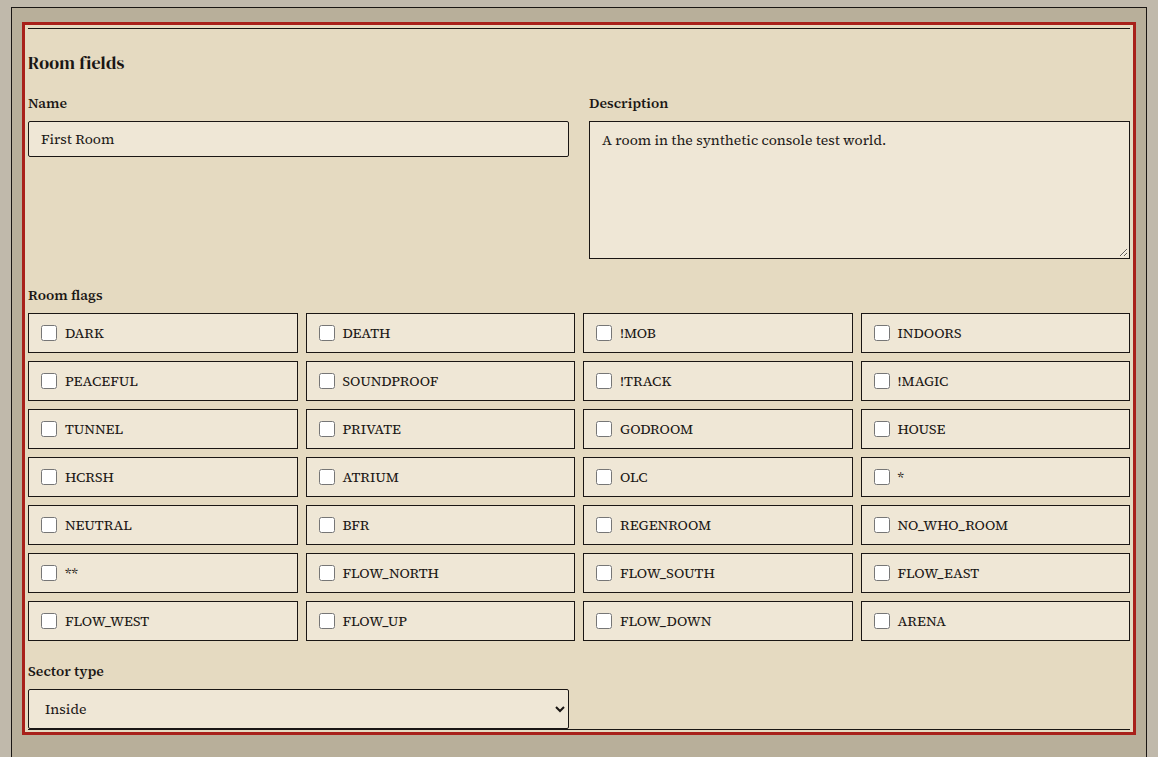
- Change the name, description, flags, sector, exits, or extra descriptions. Your edits stay isolated in your draft while you work.
- Review the room, then choose Commit draft.
The room updates in the running world and releases your editing lock.
- Choose Save zone file, or batch-save your pending zones from Workshop & saves.
Did it work?
Section titled “Did it work?”The room detail view shows your committed fields, and once you save the zone file, the zone clears out of pending saves in Workshop & saves.
If it didn't work
Section titled “If it didn't work”- Another builder holds the room. Wait for them to commit or discard their draft, then reopen it.
- Save zone file is disabled. Commit your room draft to the running world first.
- Edit controls are locked. Check your account's zone permissions in the builder guide or ask an implementor to check
set <player> olc <zone>.